> For the complete documentation index, see [llms.txt](https://docs.cymbal.co/help/llms.txt). Markdown versions of documentation pages are available by appending `.md` to page URLs; this page is available as [Markdown](https://docs.cymbal.co/help/email/email-automations.md).

# Email Automations

## How to setup preexisting email automations:

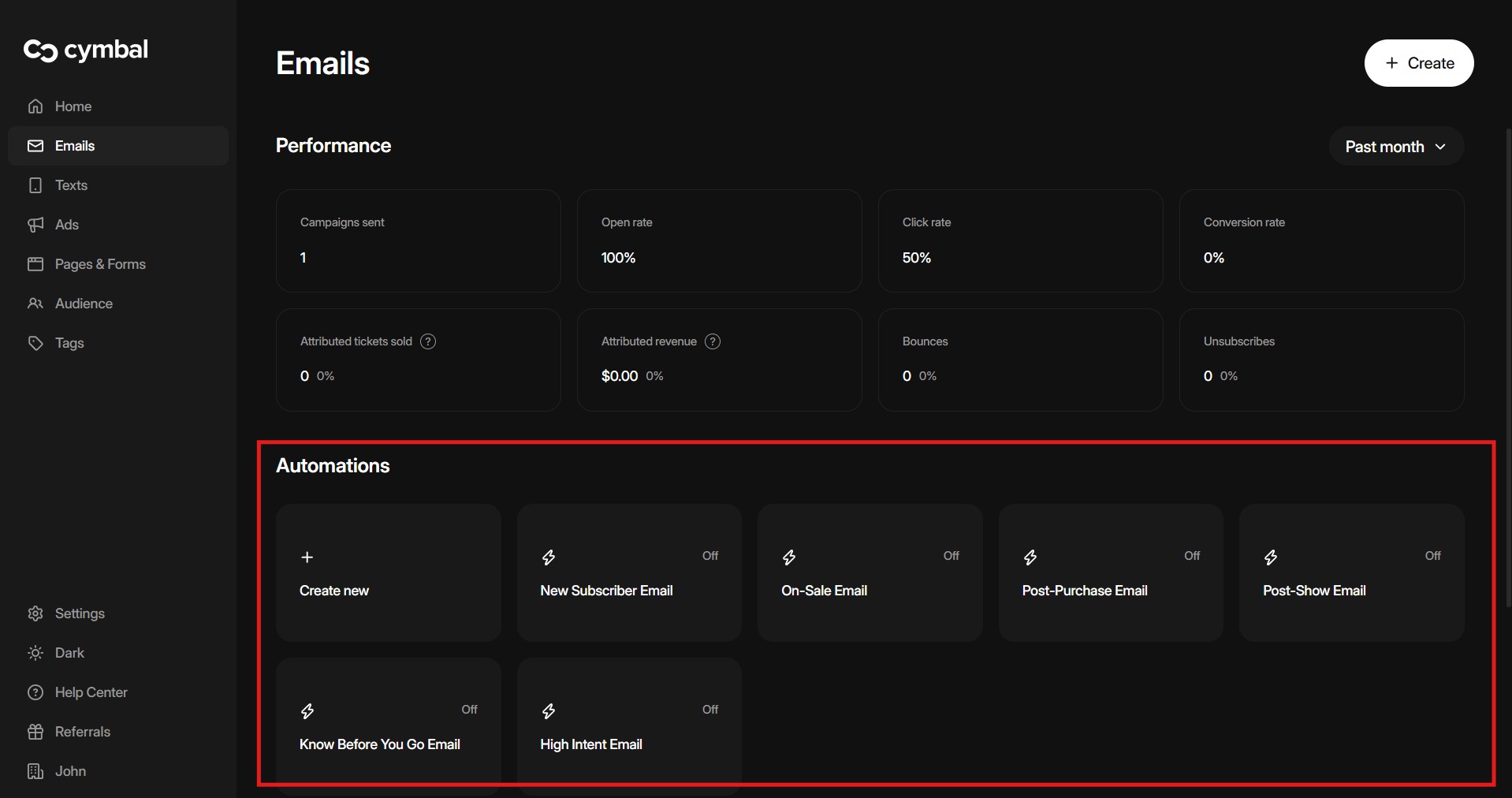
1. Go to the [Email](https://manager.cymbal.co/email) tab
2. Find the **Automations** section to get started

<figure><img src="/files/nRykAbzQ24kVFCvUUvpm" alt=""><figcaption></figcaption></figure>

3. To setup an **Automation** select from our **preexisting** automations (we recommend setting up a "High Intent" automation)
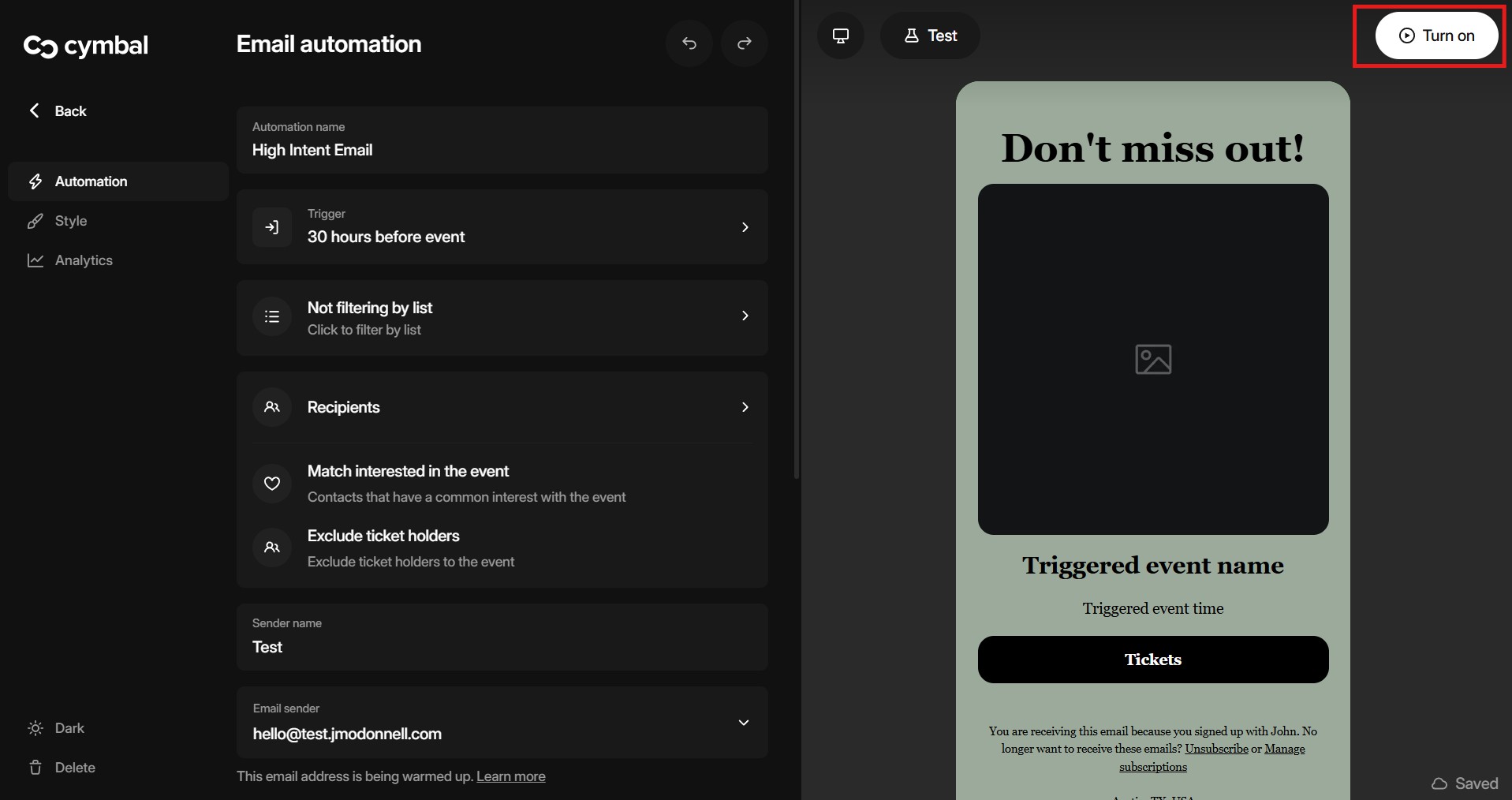
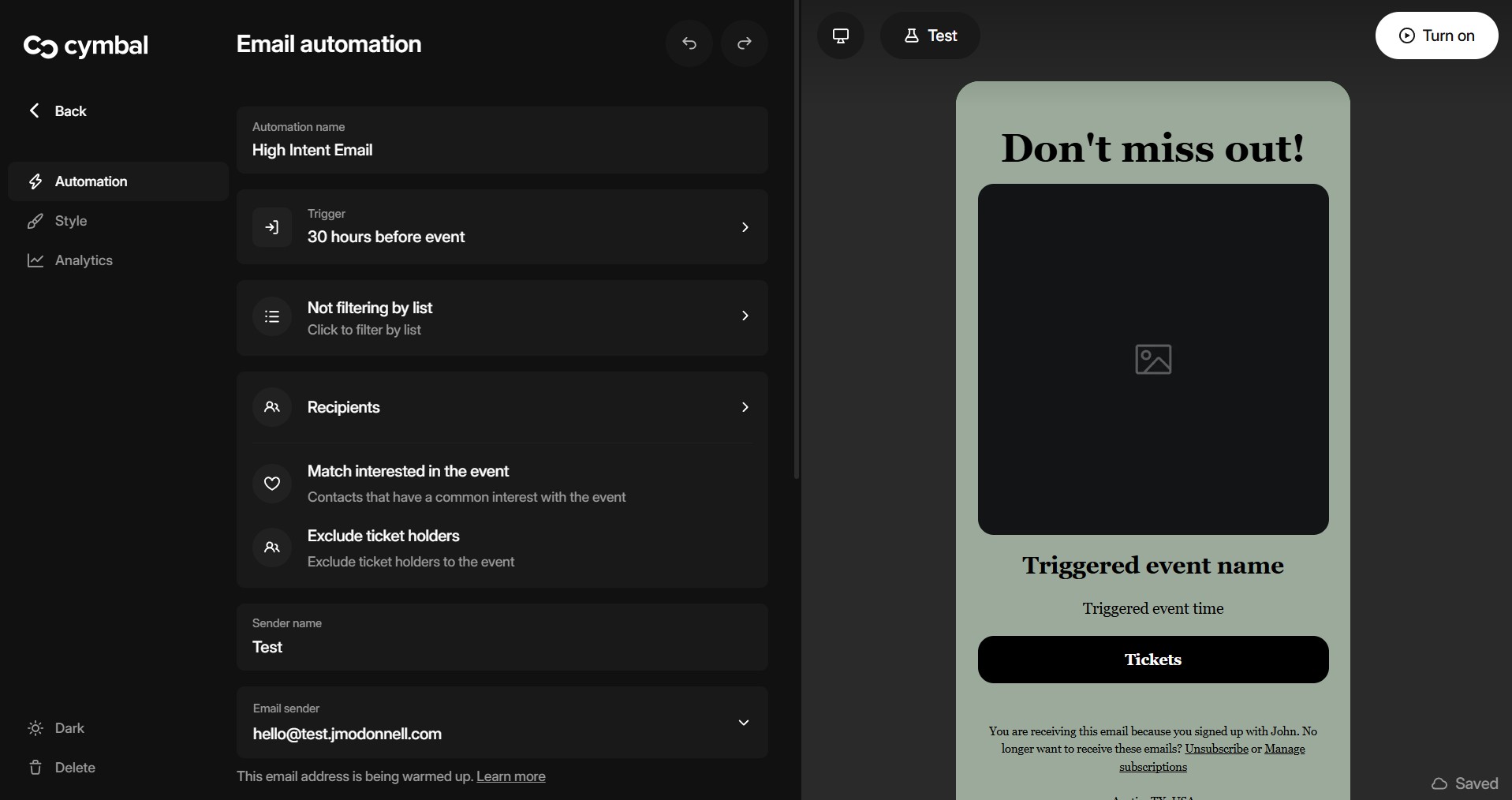
4. For this example select "High Intent" to get started

<figure><img src="/files/EkNE29oD1hNh1PEeXzdH" alt=""><figcaption></figcaption></figure>

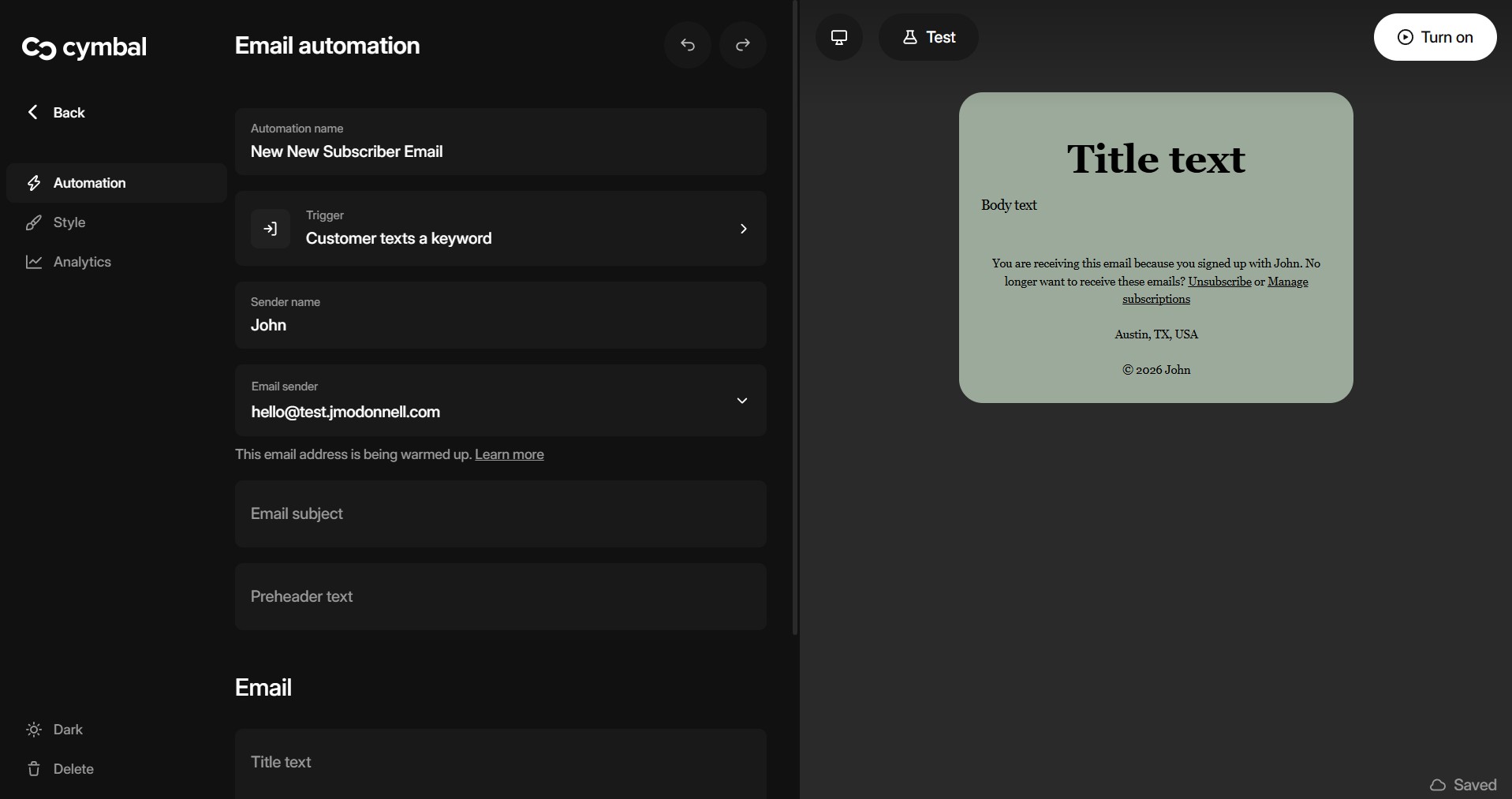
5. In the editor you are able to adjust when the **event triggers**, the **targeted recipients**, and the **style** of the email.
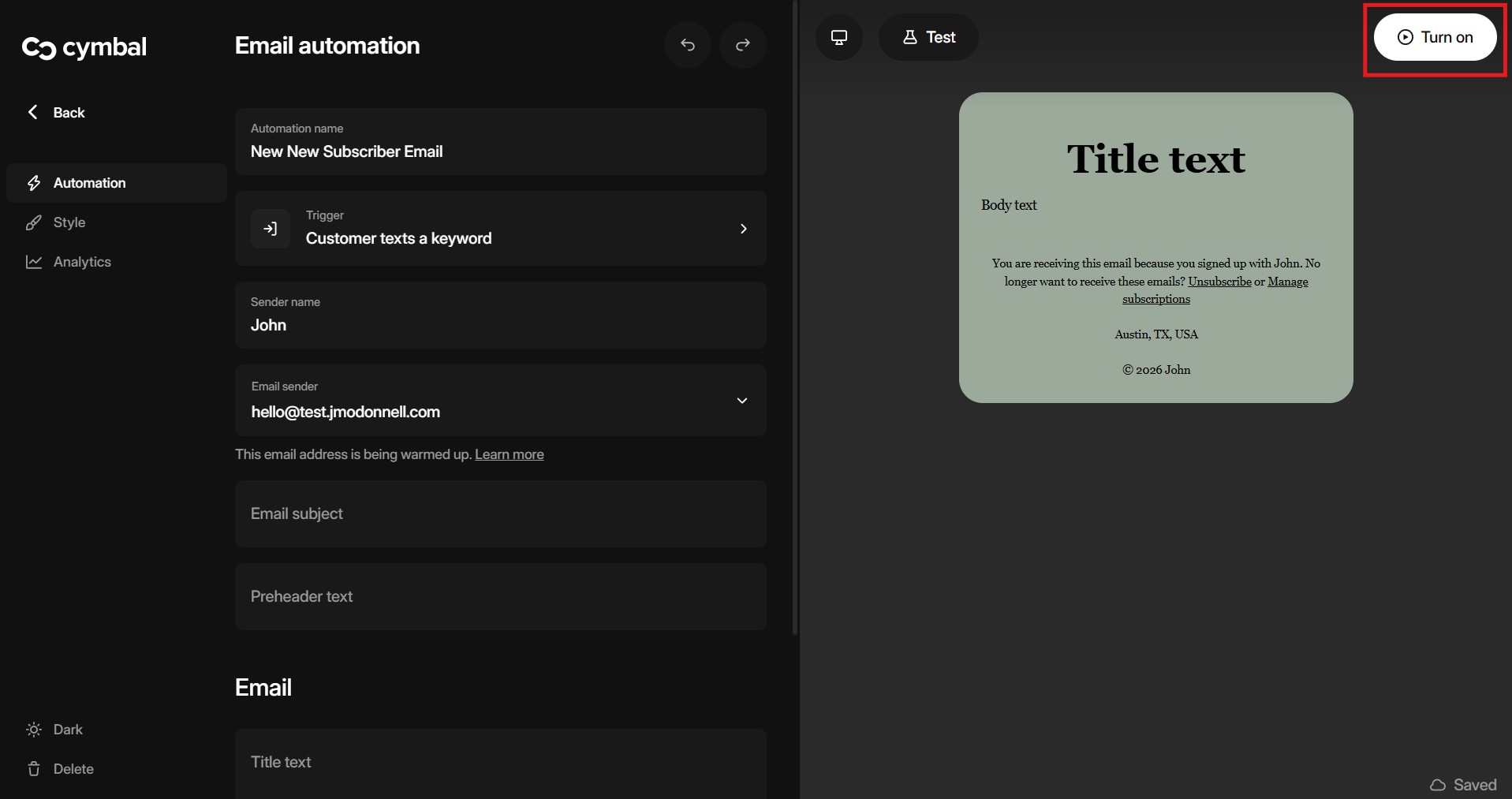
6. When you are ready select **"Turn on"** in the top right

<figure><img src="/files/lSbVaAYss3rMHo9JRsLx" alt=""><figcaption></figcaption></figure>

7. Your email automation is now live.

***

## How to create a new email automation:

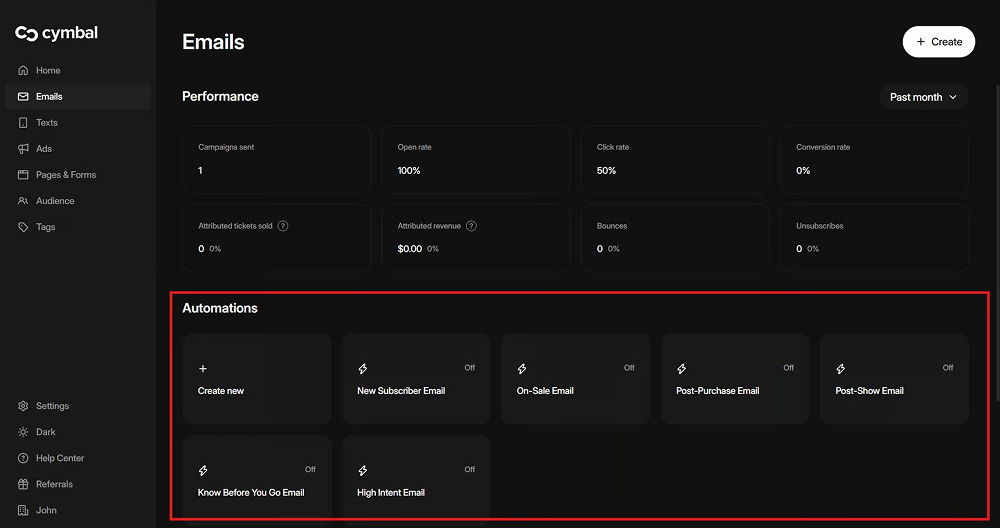
1. Go to the [Email](https://manager.cymbal.co/email) tab
2. Find the **Automations** section to get started

<figure><img src="/files/LCXNoJEZdQgYOqcgBdxi" alt=""><figcaption></figcaption></figure>

1. Select **"Create new"** in the Automations section
2. Select **any** Automation option, for this example we will use the "New subscriber" Automation

<figure><img src="/files/w0W6Nx2Jf1yV4GbzRQSP" alt=""><figcaption></figcaption></figure>

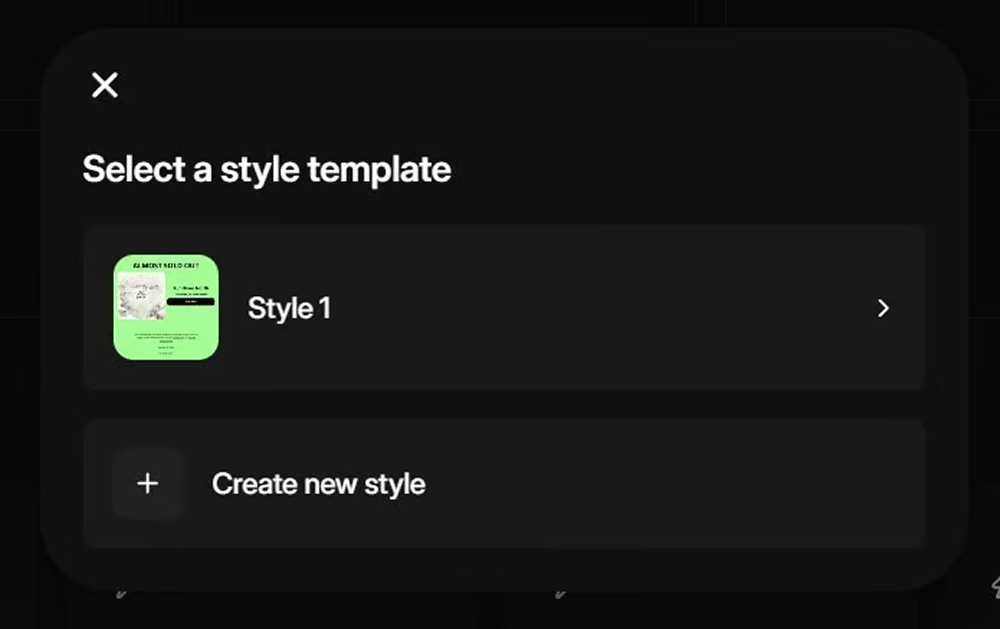
5. Select your **style template** or **create a new one**

<figure><img src="/files/fI91Ekb7VzceLZA5YRdE" alt=""><figcaption></figcaption></figure>

6. In the editor you are able to adjust when the **event triggers**, the **targeted recipients**, and the **style** of the email.

<figure><img src="/files/d053icmNZf6Xolw1W3Ay" alt=""><figcaption></figcaption></figure>

7. When you are ready select **"Turn on"** in the top right

<figure><img src="/files/NmdDwG5X35jNvaIxFdL9" alt=""><figcaption></figcaption></figure>

8. Your email automation is now live.
> Automations sometimes take time from "live" to officially being functional. This is intentional as we don't want automations firing that my have incorrect targeting or design. \
> Typically, Cymbal schedules campaigns 2–4 days in advance. This allows you to review the scheduled campaign and validate the content before it goes live.\
> \
> Note: this doesn't always apply for non time based automations like abandon cart automations etc.