> For the complete documentation index, see [llms.txt](https://docs.cymbal.co/help/llms.txt). Markdown versions of documentation pages are available by appending `.md` to page URLs; this page is available as [Markdown](https://docs.cymbal.co/help/segmentation/how-to-use-the-targeting-modal.md).
# How to use the targeting modal
This page goes over how to use the targeting modal for better segmentation capabilities
The targeting modal helps you define exactly who will receive your campaigns. It gives you full control over audience segmentation using contact data, engagement history, and behavioral insights. With these advanced targeting tools, you can build precise, personalized, and high-performing campaigns that reach the right people every time.
## Audience Categories
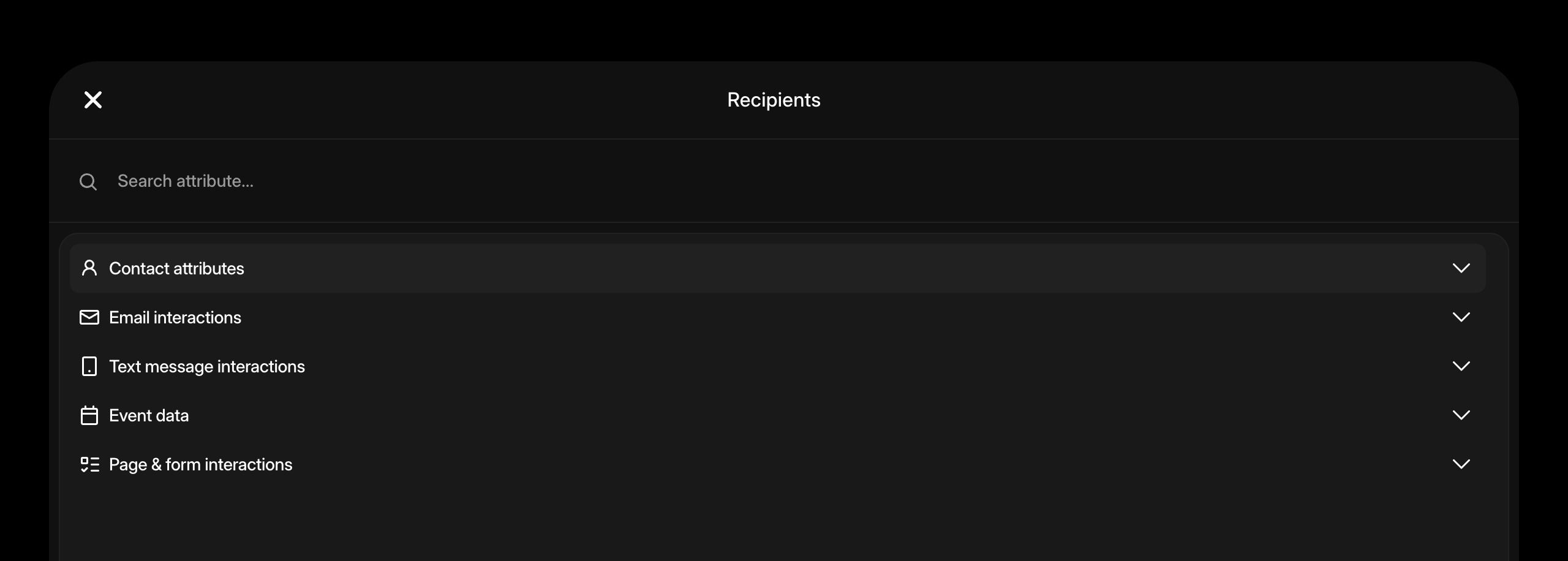
The targeting modal organizes your filters into five main categories. Each category helps you focus on a specific type of audience data.
### Contact Attributes
Filter based on profile information, location, engagement, and revenue data.
**Available attributes:**
* Email star rating
* Text star rating
* Email
* Phone
* Tags
* Genres
* Location
* Number of events attended
* Number of tickets
* Total revenue
* Full name
* Birthday
* Age
* Gender
* Source
* Created at
* Custom attributes
### **Email Interactions**
Reach contacts based on how they engage with your email campaigns.
**Available attributes:**
* Received email campaign
* Opened email campaign
* Clicked a link in email campaign
* Total emails received
* Total emails opened
* Total email links clicked
* Attributed tickets sold from email
* Attributed revenue from email
* Last email received timestamp
* Last email opened timestamp
* Last email link clicked timestamp
### **Text Message Interactions**
Segment your audience based on their activity with your text message campaigns.
**Available attributes:**
* Received text campaign
* Clicked a link in text campaign
* Total texts received
* Total text links clicked
* Attributed tickets sold from text
* Attributed revenue from text
* Last text received timestamp
* Last text link clicked timestamp
### **Event Data**
Filter your audience by their event activity and attendance history.
**Available attributes:**
* Purchased ticket type
* Purchased ticket to event
* Interested in event
* Attended event with performer
### **Page & Form Interactions**
Connect with users based on their actions on your pages or forms.
**Available attribute:**
* Submitted form
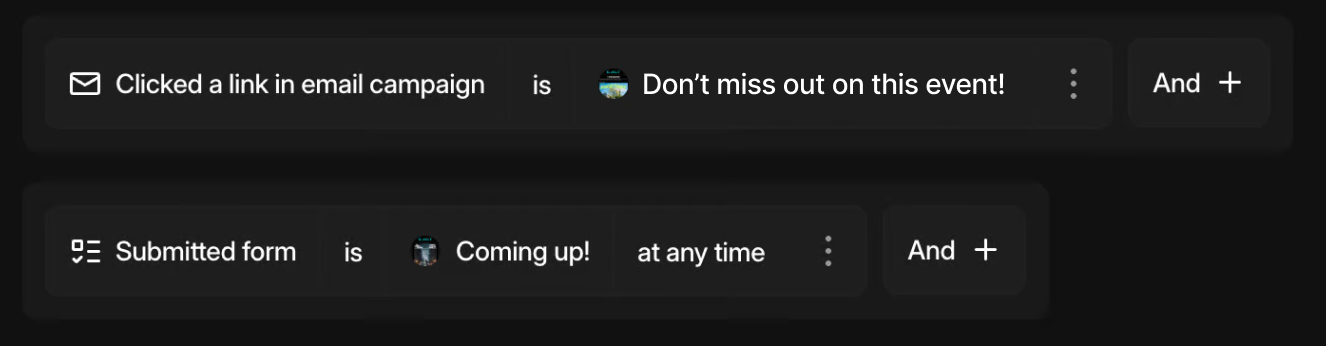
## Combining Filters with AND / OR Logic
You can combine multiple filters to refine or expand your target audience.
* **AND Logic**\
Includes only contacts who meet *all* the selected conditions.
* Example: “Opened Email” **AND** “Attended Event”
* Result: Targets contacts who both opened an email *and* attended an event.
* **OR Logic**\
Includes contacts who meet *any* of the selected conditions.
* Example: “Clicked Link” **OR** “Submitted Form”
* Result: Targets contacts who did either action.
Use **AND** to narrow your audience and **OR** to widen it.\
**Pro Tip:** When using multiple filters, review your audience summary to make sure it matches your intended reach.
## Advanced Options
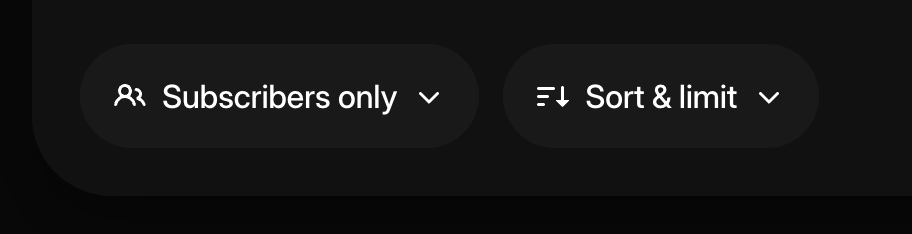
At the bottom of the targeting modal, you’ll find two additional settings that help you control which contacts are eligible to receive your campaign.
#### **Subscribers Only**
Send only to contacts who are actively subscribed.
* Recommended for most marketing and promotional messages.
* Helps ensure compliance with email marketing laws.
#### **Transactional**
Send to all contacts, including unsubscribed ones.
* Use only for essential, non-promotional, or transactional messages (such as purchase confirmations, or event updates).
### Sort & limit
Use **Sort & Limit** to organize your audience and control how many contacts receive your campaign.
**Available sorting options:**
* Name
* Email contact rating
* Tickets purchased
* Total spent
* Events attended
* Date added
After choosing your sorting option, you can set a **limit** to specify the maximum number of contacts included in your send.
**Examples:**
* Sort by **total spent** and limit to your top 100 buyers.
This feature is ideal for testing smaller audience groups, running exclusive campaigns, or prioritizing your most valuable contacts before scaling to a larger list.